

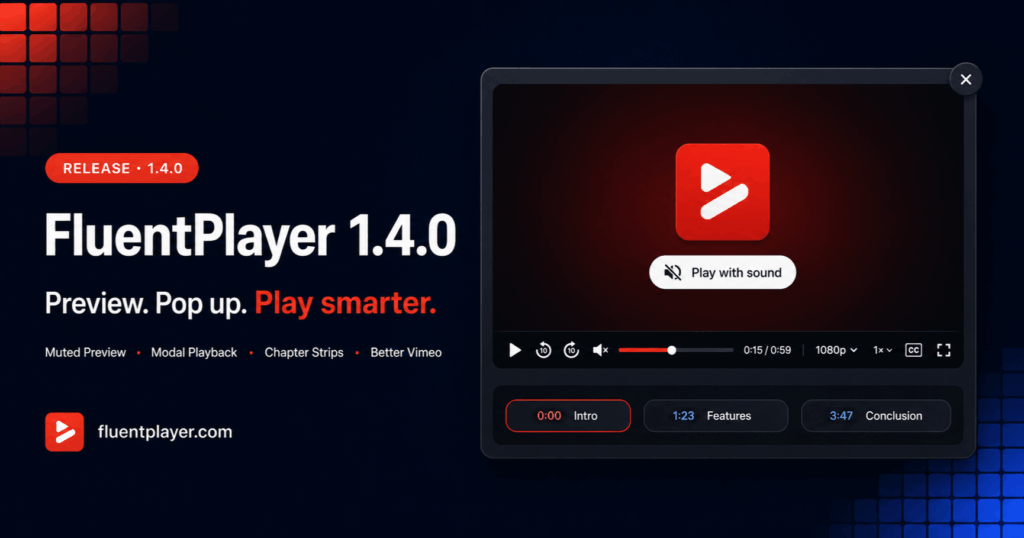
FluentPlayer 1.4.0 gives publishers cleaner ways to present media and gives viewers faster ways to explore it.
Modal playback and chapter strips lead the release. Vimeo controls, privacy-ready embeds, Single Playback, stronger security, and important reliability improvements complete the update.
The result is a more polished experience for everyday visitors, with practical controls for site owners and developers who need deeper integrations.
You can adopt the visible improvements immediately, while the underlying privacy, security, and performance work helps existing players behave more consistently across real-world pages.
If you use FluentPlayer Pro, update FluentPlayer and FluentPlayer Pro together.
What is new at a glance?
- Open media in a modal from text, a button, an image, a thumbnail, or an icon
- Autoplay a silent, looping preview that converts to full playback with sound on click — with no tracking until the viewer engages
- Display video chapters in a visible, scrollable strip
- Use improved Vimeo quality, speed, chapter, and privacy controls, with Vimeo caption support in Pro
- Pause other players automatically when a new player starts
- Delay YouTube and Vimeo until a consent tool grants permission
- Improve resume playback, Cloudflare Stream reliability, permissions, and sensitive-data handling
Open media in a focused modal
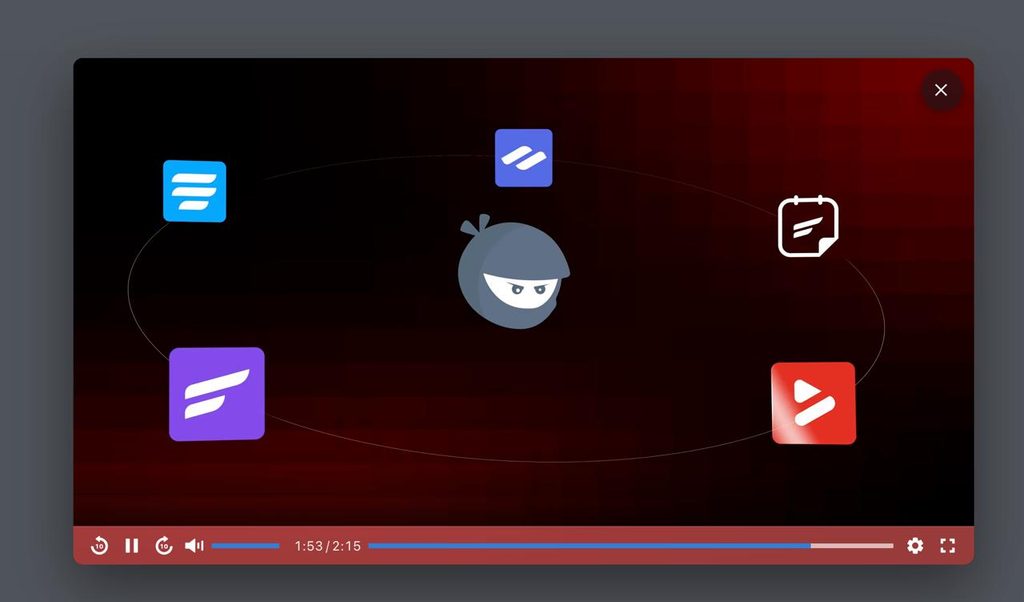
For sites using FluentPlayer Pro, version 1.4.0 introduces on-demand modal playback. Visitors can open a selected media item in a focused lightbox without placing the full player inline.
Use a simple text trigger or a built-in button style:
[fluentplayer_modal id="123"]Watch now[/fluentplayer_modal]

[fluentplayer_modal id="123" button="primary"]Watch the video[/fluentplayer_modal]
The trigger can also be an image or thumbnail:
[fluentplayer_modal id="123"]
<img src="video-thumbnail.jpg" alt="Watch the product walkthrough">
[/fluentplayer_modal]
Icons and styled text are supported too. This makes modal playback useful for hero sections, course previews, media cards, product demos, and compact play controls.
It also lets you reuse the same media in different parts of a page without turning every placement into a large embedded player.
For example, a product image can open a walkthrough, a course card can launch a lesson preview, and a small play icon can introduce a story without disrupting the surrounding design.
Use clear text or meaningful image alt text so every trigger remains accessible.
The media is fetched when the visitor opens the modal. The lightbox supports Escape, backdrop and close-button controls, focus restoration, and player cleanup when closed.
Private and password-protected media continue through their access checks before the player is returned. For every trigger option and attribute, see the lightbox documentation.
Make chapters easier to discover
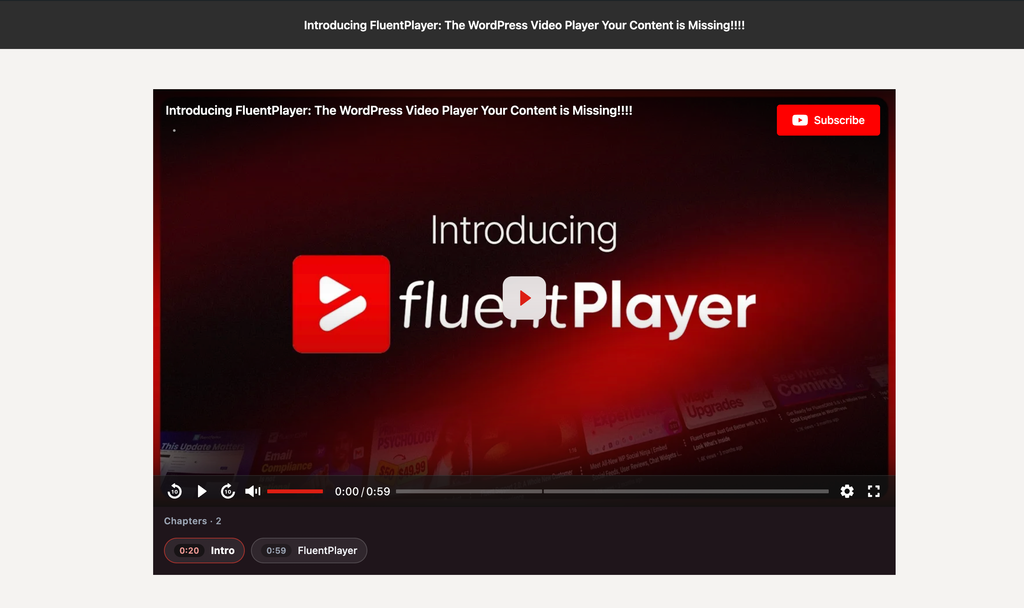
Pro users can now display video chapters as a horizontal scroll strip below the player.
Each item shows its title and start time. Selecting one seeks directly to that section, while the active chapter follows playback.
Navigation controls appear when the list overflows. The strip also supports keyboard focus, accessible labels, and reduced-motion preferences.
For tutorials, courses, interviews, and longer presentations, this gives viewers a quick overview before they choose where to begin.
The active state keeps that overview useful during playback, so viewers can see their current position and move between topics without repeatedly opening a separate menu.
Add chapters to a media item, then choose Inline scroll from Chapters display. The existing chapter menu remains the default. See the Chapters display documentation for setup details.
A better Vimeo experience
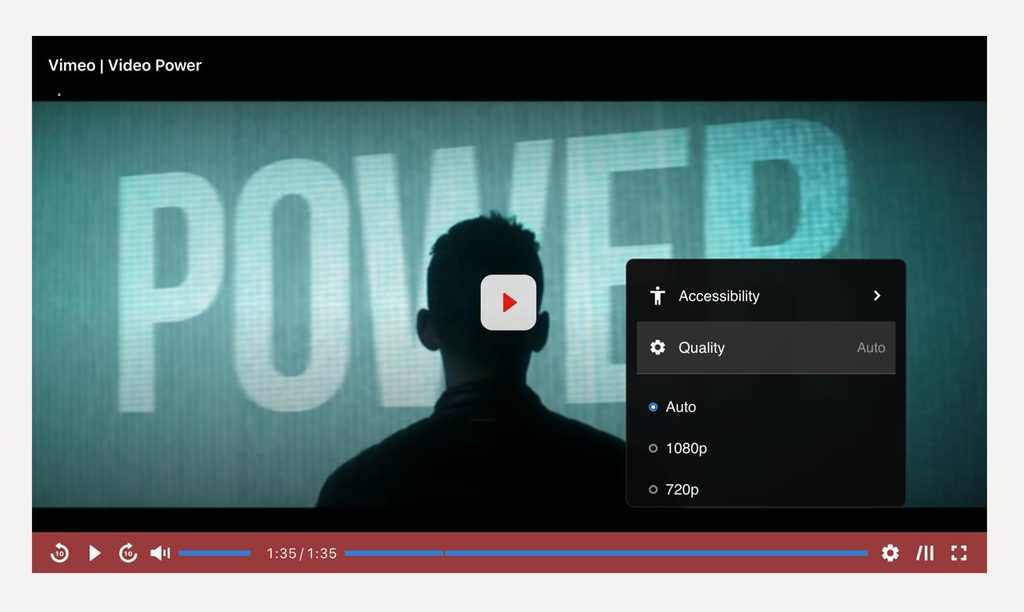
Vimeo now feels more integrated with FluentPlayer.
Viewers gain useful quality and playback-speed menus. FluentPlayer removes unavailable renditions, so the quality menu only shows options the video can deliver.
Creators can work with Vimeo chapters in the editor. Caption support for Vimeo is a Pro feature: FluentPlayer Pro lists a Vimeo video’s text tracks, imports selected languages into the media’s subtitles, and renders them in the player.
Privacy-enhanced mode is enabled by default, avoiding Vimeo cookies and visitor tracking before playback. Sites using Vimeo analytics can disable it in Vimeo settings.
Together, these changes make Vimeo playback feel less like a separate embed and more like a consistent part of the FluentPlayer experience.
Visitors get controls that reflect the source video, while publishers can manage chapters, captions, privacy, and imported subtitle tracks from a more familiar workflow. The Vimeo documentation covers the full provider setup.
Single Playback and privacy-ready embeds
Single Playback keeps pages with several players under control. When one FluentPlayer starts, the others pause automatically.
It is enabled by default. Sites designed for simultaneous playback can disable Pause other players when one starts in General settings.
This is especially useful on media libraries, lesson pages, and article layouts where several videos may appear close together.
Version 1.4.0 also adds fluent_player/defer_player for consent integrations. It can hold YouTube or Vimeo before the third-party provider initializes.
add_filter(
    'fluent_player/defer_player',
    static function ($defer, $settings, $mediaId) {
        return ! your_consent_check();
    },
    10,
    3
);
After consent, release the matching player:
container.removeAttribute('data-fp-defer');

document.dispatchEvent(new CustomEvent('InitSingleFluentPlayer', {
    detail: { container }
}));
This is an integration hook, not a built-in consent banner. Your consent platform remains responsible for deciding when permission has been granted. See the privacy modes documentation for the full workflow.
For sites with consent requirements, the important change is timing: the provider can remain uninitialized until approval, then the specific player can be released without reloading the page.
Autoplay a silent preview, then click for sound
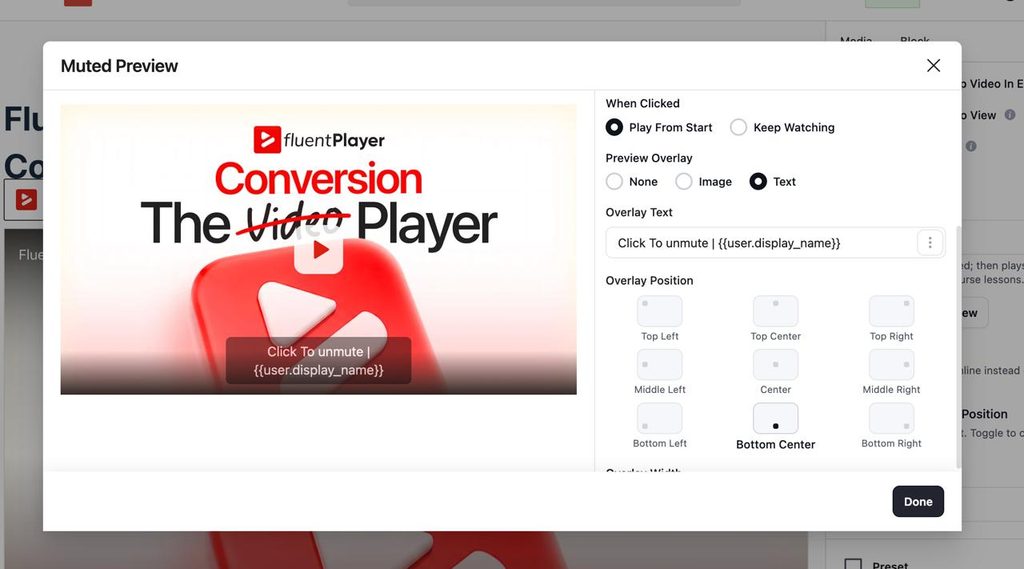
FluentPlayer 1.4.0 adds a Muted Preview autoplay mode. The video autoplays muted in a continuous loop with the controls hidden, and a branded “Play with sound” overlay sits on top from the first paint. When the viewer clicks, or presses Enter or Space, the preview converts into normal playback with sound. For detailes please check this documentaion.
Because a silent loop is meant to catch attention rather than count as a view, nothing else runs while it plays. Analytics, milestone tracking, Google Analytics, interactive layers, and Resume Playback all stay dormant during the preview. They begin only after the viewer converts to full playback, so your engagement data reflects real viewers instead of background loops.
To use it, edit a video, open General settings, set Autoplay Mode to Muted Preview, then open Muted Preview Settings. The player inside that modal is a live preview: it enters the muted-preview state exactly as the frontend does, and clicking it converts in the same way. In the free version, you can set the volume applied after the click and whether the logo shows during the preview.
With FluentPlayer Pro, the preview gains more control: captions during the silent loop, a preview range that loops only a chosen part of the video, text and button overlays shown during the preview, a click behavior that can continue from the preview position instead of restarting, and a preview overlay image or text.
The mode stays out of the way where it does not belong. Audio media never use it, it degrades to a normal click-to-play player when a visitor prefers reduced motion, and it is inert inside playlists and stripped on FluentCommunity course lessons.
Reliability, performance, and protection
Resume Playback now saves progress when viewers pause, switch tabs, navigate away, or leave a single-page application view.
Duplicate media placements work as independent players. YouTube Shorts keep their portrait framing, and FluentCommunity views regain the complete player runtime. Grid playlists stay responsive on narrow viewports, the media and playlist list tables keep their pagination controls after a large page size is chosen, and block-editor styles are scoped so they no longer leak into the surrounding WordPress admin.
Private-media records are prepared in one pass before permission checks, reducing repeated database lookups in larger media libraries.
For private Cloudflare Stream media in Pro, failed token requests are briefly cached. Token lifetime is also part of the cache key, preventing short-lived tokens from being reused for long videos.
Authorization now checks the exact media, playlist, or subtitle being changed. Sensitive provider, license, and signed-playback values are removed from browser-facing data when not needed.
The FluentPlayer Pro license screen shows useful plan and renewal information without exposing the full key. Pro updates also verify a signed manifest and package checksum before installation.
Invalid playlist colors and aspect ratios now fall back safely. Preset requests with decoded JSON settings return a validation response instead of a PHP 8 server error.
The block editor also avoids a control option deprecated in WordPress 7.1 while preserving support for older compatible WordPress versions.
These refinements are less visible than the new playback layouts, but they matter on busy sites where the same media appears more than once, visitors return to long videos, or private content must remain protected.
Technical details
Developers can use the new settings and hooks directly, while existing sites keep sensible defaults and require no database migration.
[fluentplayer_modal]creates a modal trigger for the selected media- Modal labels support safe text, images, spans, icons, emphasis, and line breaks
chaptersDisplay: stripactivates the chapter-strip presentationfluent_player/defer_playerdelays YouTube and Vimeo initializationInitSingleFluentPlayerreleases an approved deferred playerfluent_player/media_pages_enabledcan disable standalone media pages- Single Playback uses
general.pause_others_on_playand defaults totrue - Vimeo privacy mode uses
vimeo.privacy_modeand defaults totrue - Private Cloudflare Stream videos longer than an hour no longer cut off mid-playback
- Pro updates verify an Ed25519-signed manifest and SHA-256 checksum
- autoplay=”preview” enables Muted Preview from the media shortcode
- Muted Preview is stored as mutedPreview; its options live under mutedPreviewConfig
- Muted Preview free options are volume and showLogo; Pro options are captions, showOverlays, range, and clickBehavior
- Converting a preview fires fluentPlayer/mutedPreviewConverted (bubbling, with detail.mediaId); analytics, layers, and Resume Playback start only on convert
To disable standalone media pages:
add_filter('fluent_player/media_pages_enabled', '__return_false');Ready for modal playback, chapter strips, and the full Muted Preview options? Unlock every Pro feature in this release.
A clearer media experience
Modal playback keeps layouts clean while supporting flexible trigger types. Chapter strips make longer videos easier to scan without hiding navigation inside a menu.
Combined with the Vimeo, privacy, performance, and security improvements, FluentPlayer 1.4.0 offers a more flexible publishing workflow and a clearer viewing experience.
Update FluentPlayer and FluentPlayer Pro together to use the complete 1.4.0 release.
Not using Pro yet? Upgrade to FluentPlayer Pro to unlock advanced features!
New to FluentPlayer? Download the free version from here or explore Pro features at FluentPlayer Feature.
If you find this update useful, take some time to write some positive words for us here in a review here on FluentPlayer WordPress repository page. Also, join our official community to explore community use cases and ideas from other FluentPlayer users.
As always, if you need help, check out our Documentation or reach out to our Support Team. We are always here to help.